
SSO
Warning
Any deviation from the below mentioned configuration will require additional testing and possible adaption from Taurus.
SSO - Support in Taurus-PROTECT
SSO (Single sign-on) is an authentication scheme that allows users to use independent applications while using a single login ID. It allows for a usage of Taurus-PROTECT as an SP (Service Provider) using an external IdP (Identity Provider) such as Okta or Azure AD.
We support two identity authentication protocols for the communication between the IdP and the SP (Taurus-PROTECT).
- OIDC (OpenID Connect)
- SAML (Security Assertion Markup Language)
Taurus-Protect also supports the SCIM (System for Cross-domain Identity Management) specification for users management. This makes it possible to handle the Taurus-PROTECT users lifecycle directly from the IdP (automatic creation/update/delete) as well as for groups/roles on a global level.
Important
Based on our observation, it is highly recommended to have a good understanding of the Taurus-PROTECT users lifecycle, key management, its operating model design and have some experience using the product without SSO before making any integration. This can avoid unnecessary complications and delay in the integration process.
SSO - Login flow
Start Login
This endpoint is necessary for the GUI to detect if the user must log in with a basic email/password setup or be redirected to an SSO identity provider.
Example of call:
Example of response:
mode: can beBasic,OIDCorSAML
The mode returned by the call will define the continuation of the login flow.
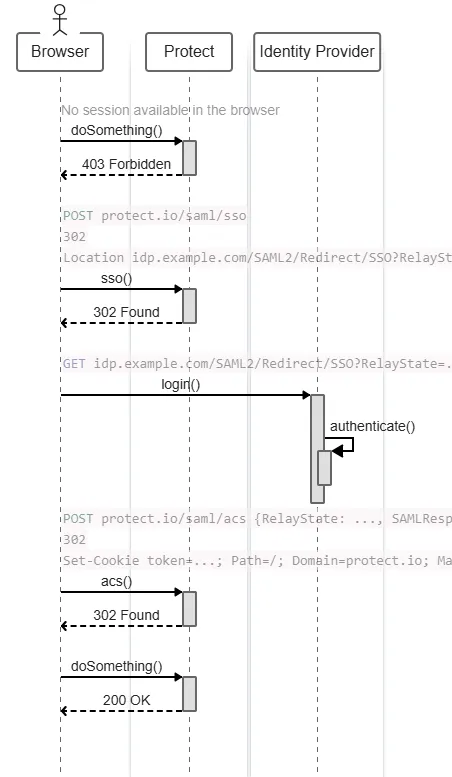
SAML - SSO
This endpoint is called by the GUI to receive the redirection the user must follow in order to get authenticated by the identity provider.
POST /api/rest/v1/authentication/saml/sso
Example of request body:
Example of response:
SAML - ACS
This endpoint is the redirection used by the SAML flow to confirm the authentication of a user.
POST /api/rest/v1/authentication/saml/acs
Example of request body:
Example of response:
Diagram below - Calling an endpoint of Taurus-PROTECT with SAML 2.0
OIDC - SSO
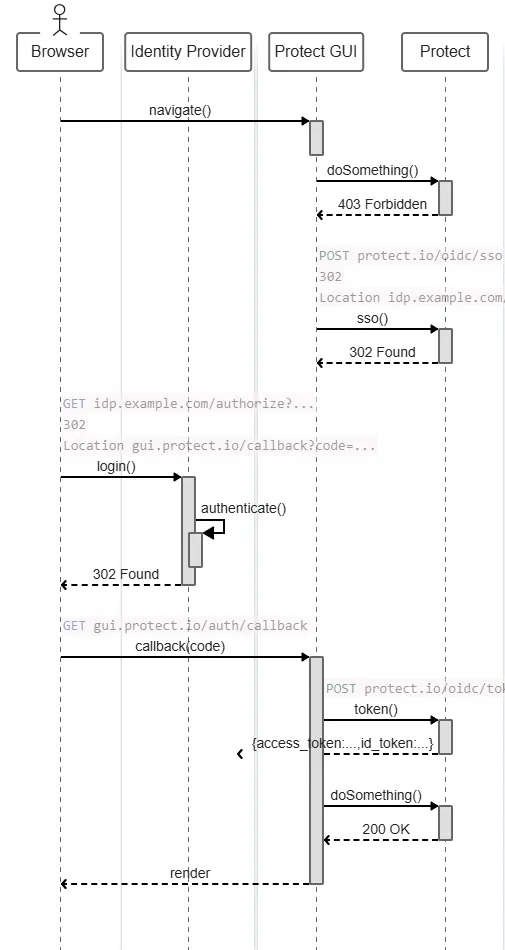
This endpoint is called by the GUI to receive the redirection the user must follow in order to get authenticated by the identity provider.
POST /api/rest/v1/authentication/oidc/sso
Example of request body:
Example of Response
OIDC - Token
This endpoint is called by the GUI after it receives a code from the identity provider. Protect can then contact the identity provider to accept the session.
POST /api/rest/v1/authentication/oidc/token
Example of request body:
Example of Response
Diagram below - Calling an endpoint of Taurus-PROTECT with OIDC
SSO - Configuration
In order to use SSO with Taurus-PROTECT, a few components need to be configured with either SAML or OIDC (or both).
- IdP (e.g. Okta, Azure AD)
- SP (Taurus-PROTECT)
- (optional) SCIM
Limitations
The tenant of the SSO user is determined through the federated domain of the email which means that an identity provider can only be used for one single tenant.
Validatord configuration
The following configuration options must be included in validatord:
Where public_host refers to the publicly accessible URL to tg-validatord(backend) url.
Configuration - Tenant configuration
sso_automatic_user_update
- true: Users will automatically be created / updated with the information provided by the IdP. If the user doesn’t exist yet it will create it, and if the last name of the user returned by the IdP is different with what is currently in the DB, it will update it.
- false: Users need to be created manually by the user manager with the username / external user id matching the subject/user ID returned by the IdP.
sso_bypass_admin_approval
- true: Automatic user/group changes made by the SSO system will directly be applied in Taurus-PROTECT without the need of an approval by an Admin.
- false: Automatic user/group changes made by the SSO system will need to be manually approved by the Admins.
sso_enforce_authentication
- true: Users can only log in with SSO, they won’t be able to log in directly with their Taurus-PROTECT credentials.
- false: Users can log in using either their Taurus-PROTECT credentials or via SSO. They’ll have a password and will be able to reset it.
IdP Configuration
Each IdP has a different setup and configurations that it should provide in its documentation.
We provide a guide and examples for Okta and Azure AD configured for both OIDC and SAML.
Okta - OIDC
Prerequisites
To get started, you need:
- To enable SSO in Taurus-PROTECT configuration (tg-validatord and tg-protect-gui).
Configure OKTA SSO
Follow these steps to enable OKTA SSO.
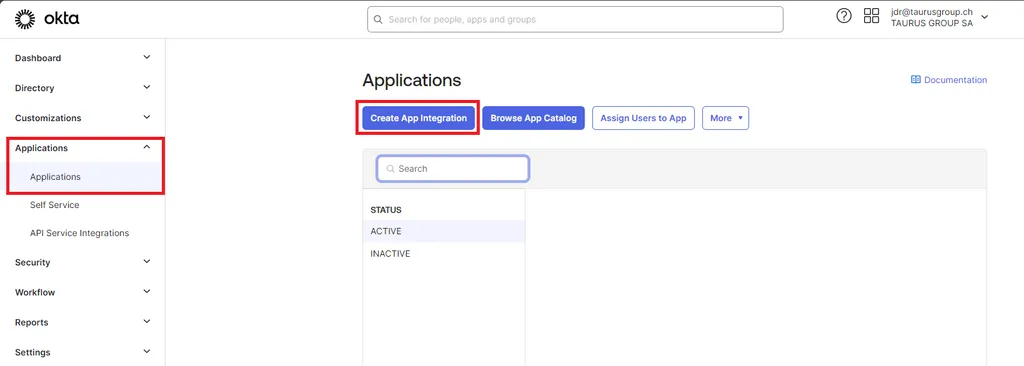
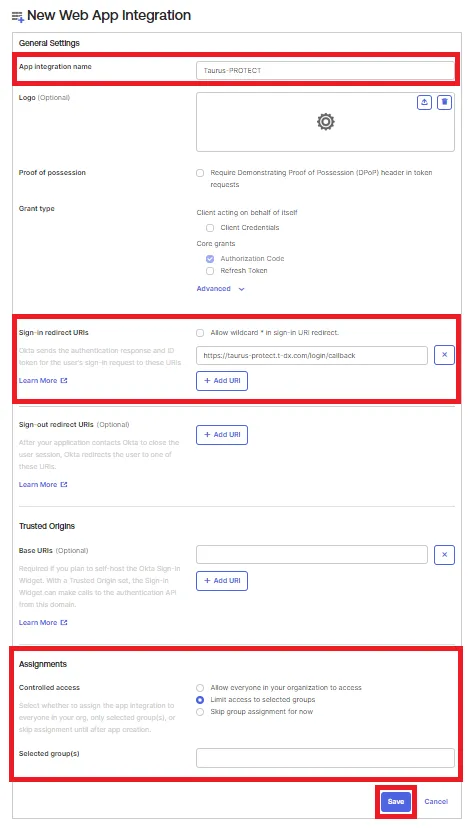
- In the OKTA admin console, browse to Applications > Applications and select Create App Integration.
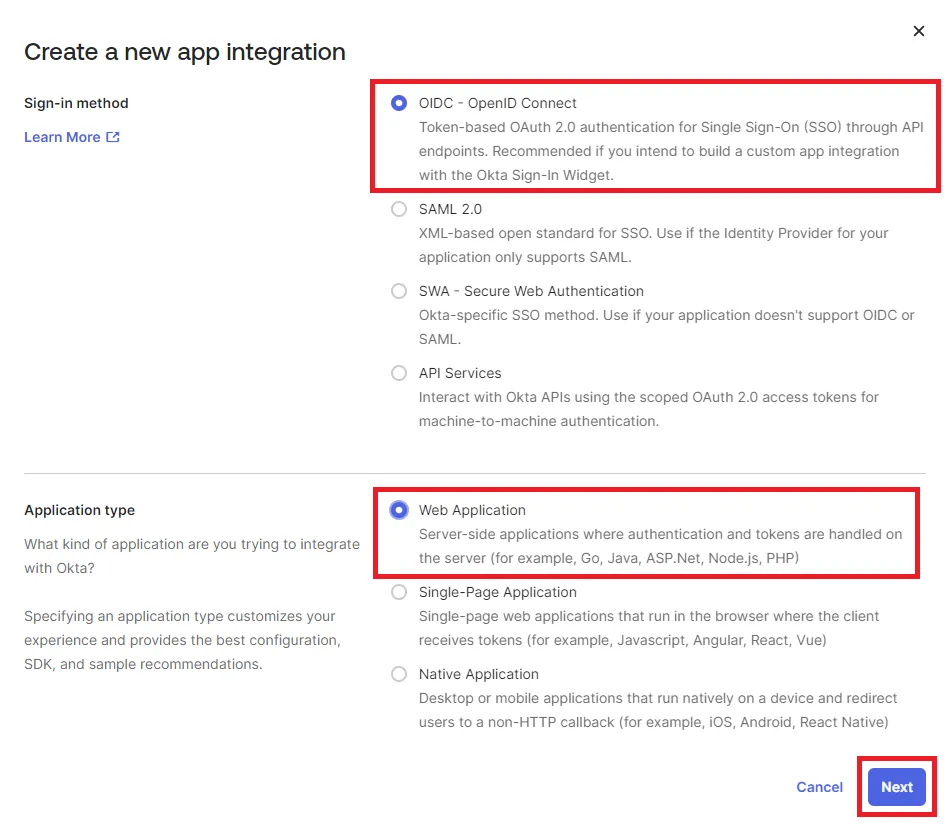
- Pick OIDC - OpenID Connect as Sign-in method and Web Application as Application type.
- Input the application name (e.g. Taurus-PROTECT) and in the Sign-in redirect URI section add a URI matching the following pattern:
https://<Taurus-PROTECT frontend URL>/login/callback. In the Assignment section tick Limit access to selected groups and add the desired groups in the list below. Click on Save to validate.
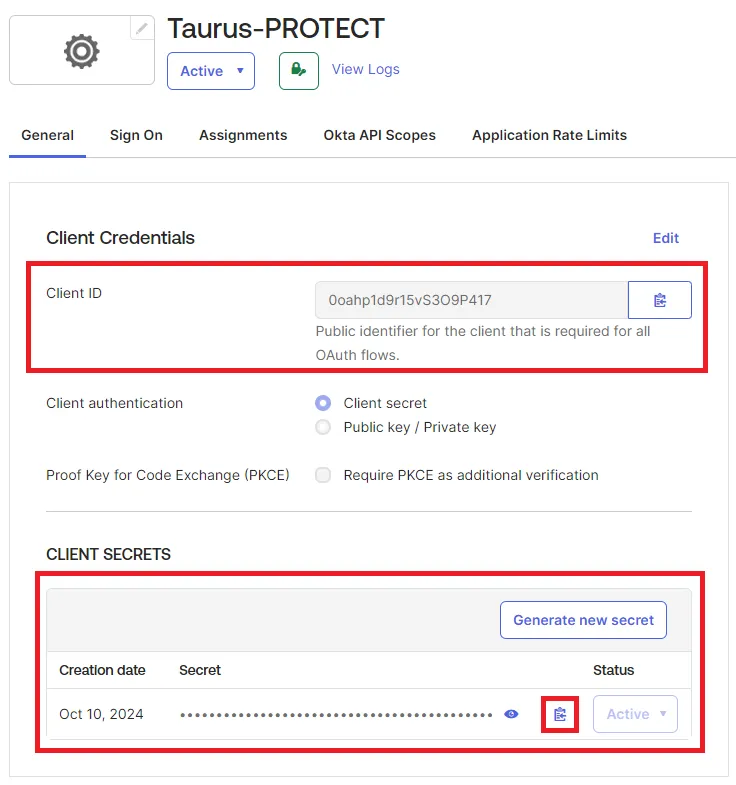
- Browse to the General tab of the application and take note of the following information:
- Client ID
- Client Secret
Okta - SAML
Prerequisites
To get started, you need:
- To enable SSO in Taurus-PROTECT configuration (tg-validatord and tg-protect-gui).
Configure OKTA SSO
Follow these steps to enable OKTA SSO.
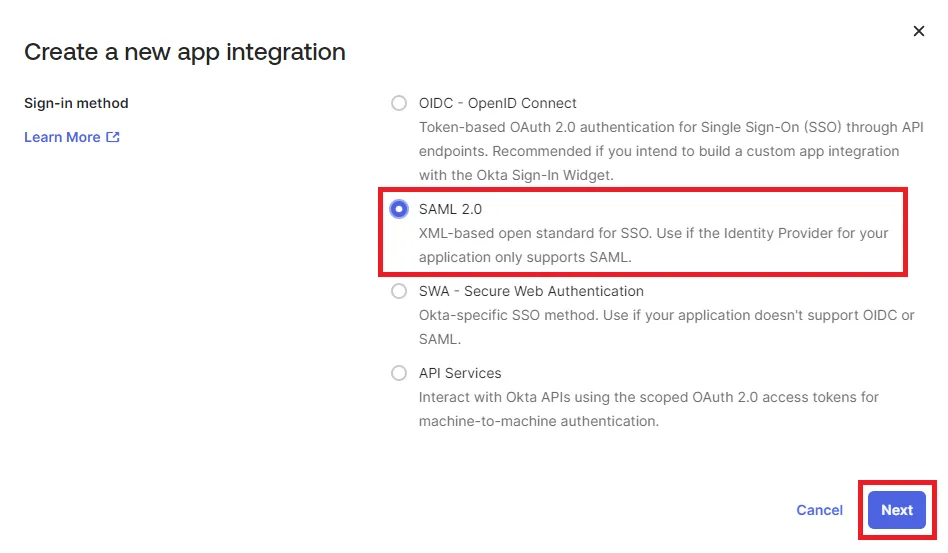
- In the OKTA admin console, browse to Applications > Applications and select Create App Integration.
- Pick SAML 2.0 as Sign-in method and validate with Next.
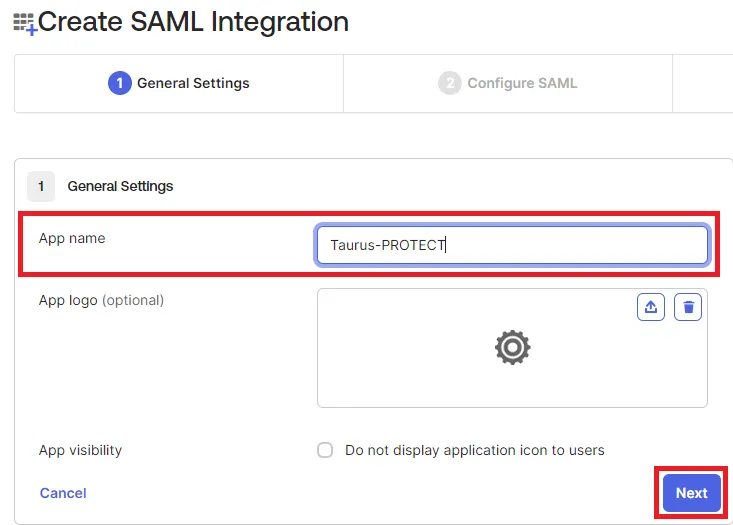
- Input the application name (e.g Taurus-PROTECT) and click Next to continue.
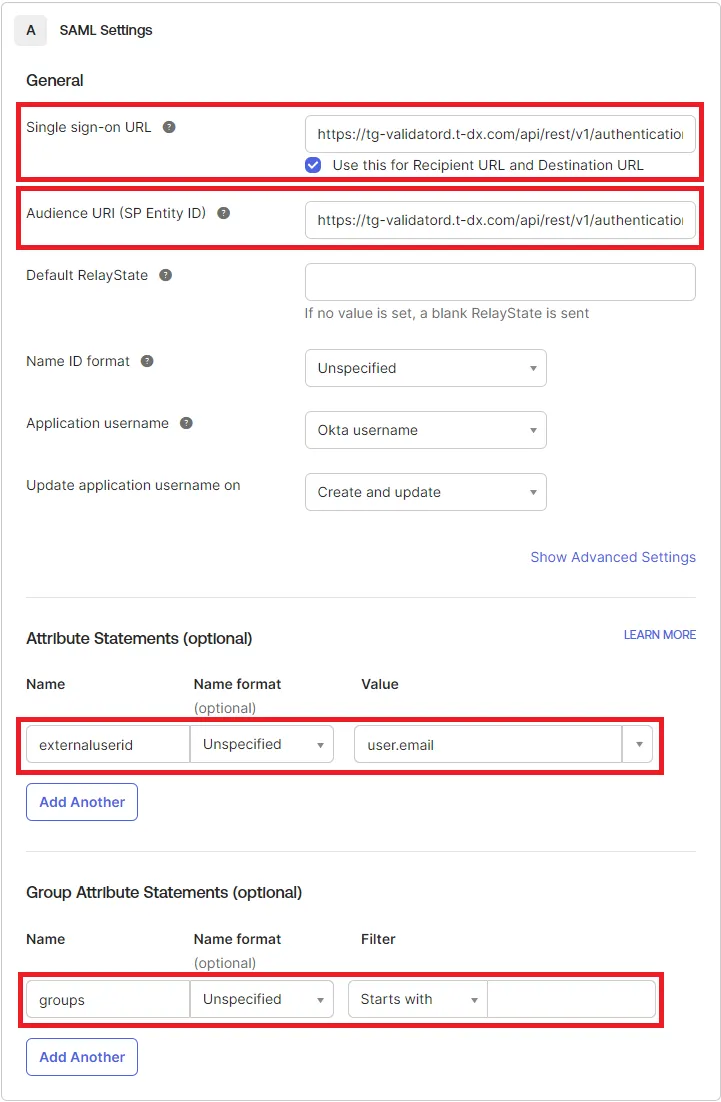
- In the Configure SAML tab enter the following values:
- In the Single sign-on URL text box, type a URL using the following pattern:
https://<Taurus-PROTECT backend URL>/api/rest/v1/authentication/saml/acs.Be sure the checkbox Use this for Recipient URL and Destination URL is ticked. - In the Audience URI (SP Entity ID) text box, type a URL using the following pattern:
https://<Taurus-PROTECT backend URL>/api/rest/v1/authentication/saml/metadata. - In the Attribute Statements (optional) section add the externaluserid claim with the user.email as value.
- (Optional) In the Group Attribute Statements (optional) section add the groups claim and filter the desired groups.
- In the Single sign-on URL text box, type a URL using the following pattern:
- In the Feedback section, set the App type to This is an internal app that we have created and validate with the Finish button.
Azure AD - OIDC
Prerequisites
To get started, you need:
- A Microsoft Entra subscription.
- To enable SSO in Taurus-PROTECT configuration (tg-validatord and tg-protect-gui).
Configure Microsoft Entra SSO
Follow these steps to enable Microsoft Entra SSO.
- Sign in to the Microsoft Entra admin center as at least a Cloud Application Administrator.
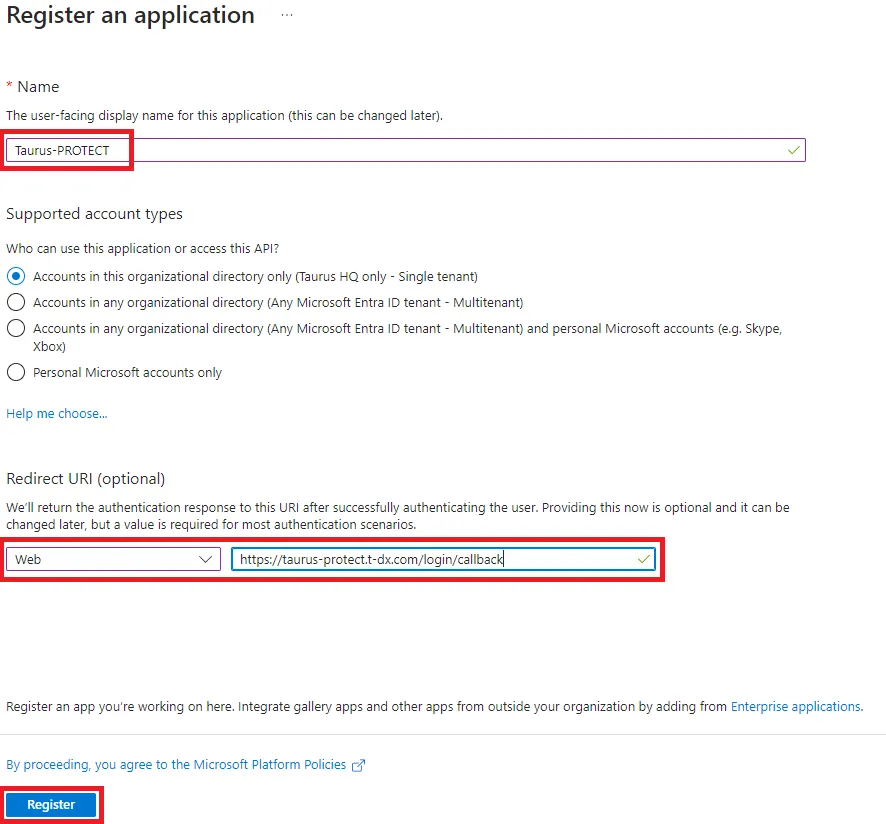
- Browse to Identity > Applications > App registrations > New registration.
- Input the application name (e.g. Taurus-PROTECT) and in the Redirect URI (optional) section select Web as a platform and a URI matching the following pattern:
https://<Taurus-PROTECT frontend URL>/login/callback. Select Register to register the application.
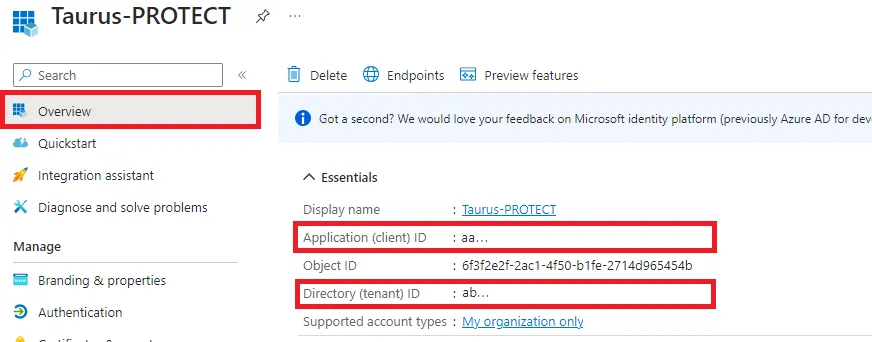
- Browse to Overview and take note of the following information:
- Application (client) ID
- Directory (tenant) ID
- Browse to Certificates & secrets > Client secrets and select New client secret.
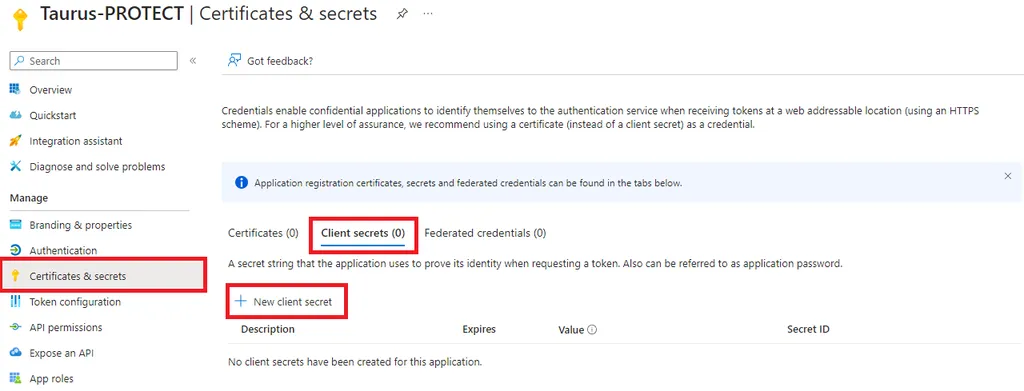
- Pick a Description, an Expiration and select **
- **:
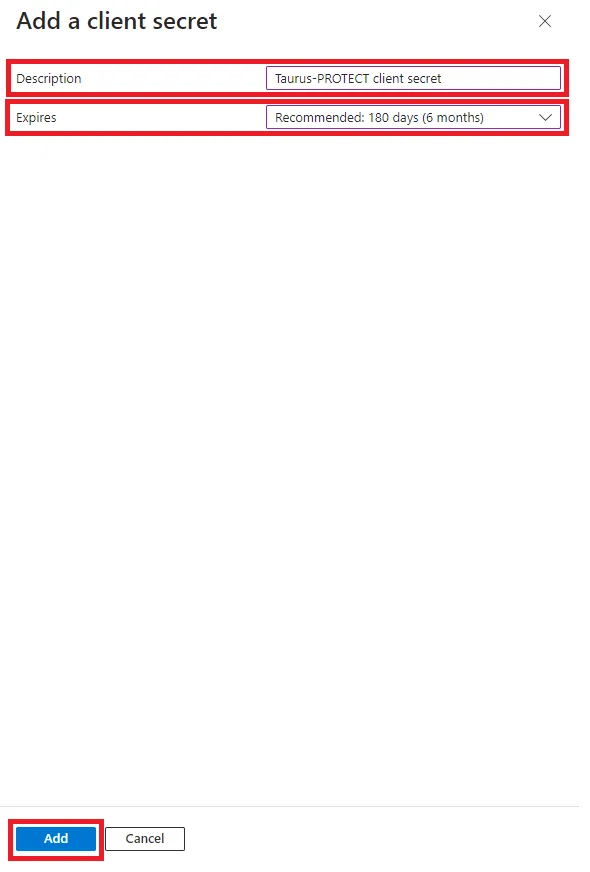
- Be sure to save the secret’s Value somewhere safe. You won’t be able to access it later.
- Browse to Token configuration and select Add optional claim. Select ID as Token type and add the following claims:
- family_name
- given_name
- preferred_username
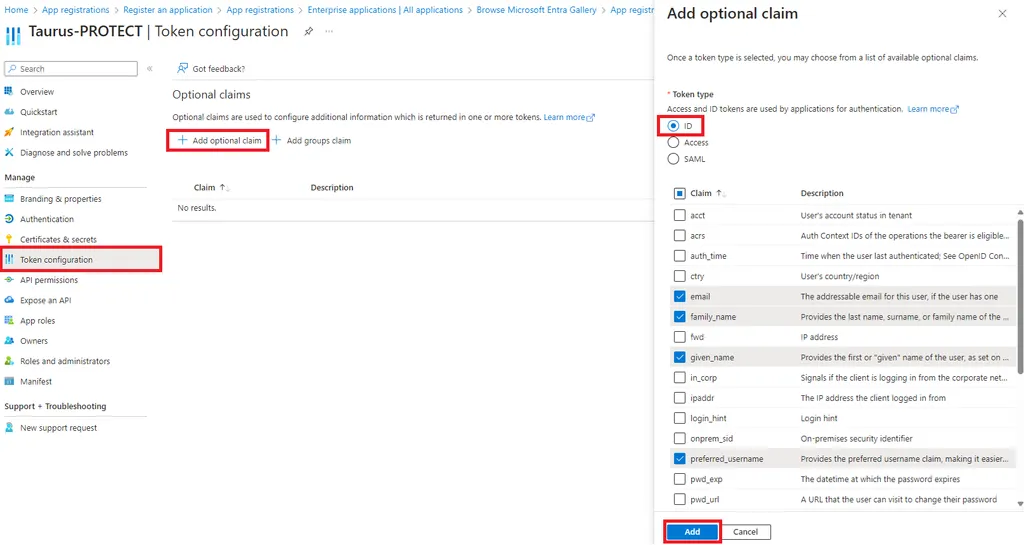
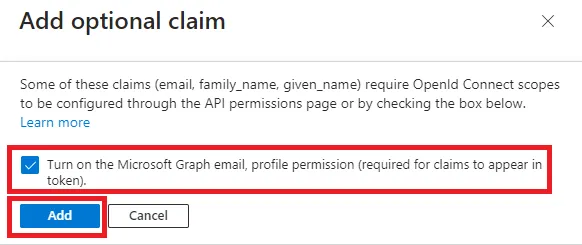
- Select Add to validate and tick the box Turn on the Microsoft Graph email, profile permission (required for claims to appear in token). Validate with Add.
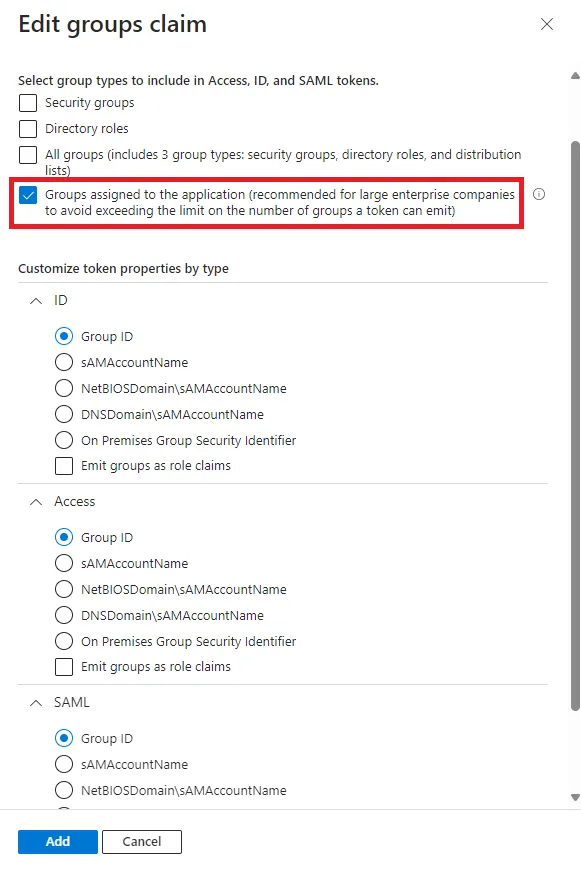
- (Optional) Select Add groups claims and pick Groups assigned to the application (…).
- Browse to API permissions and select Grant admin consent for
<tenant name>. Confirm with Yes.
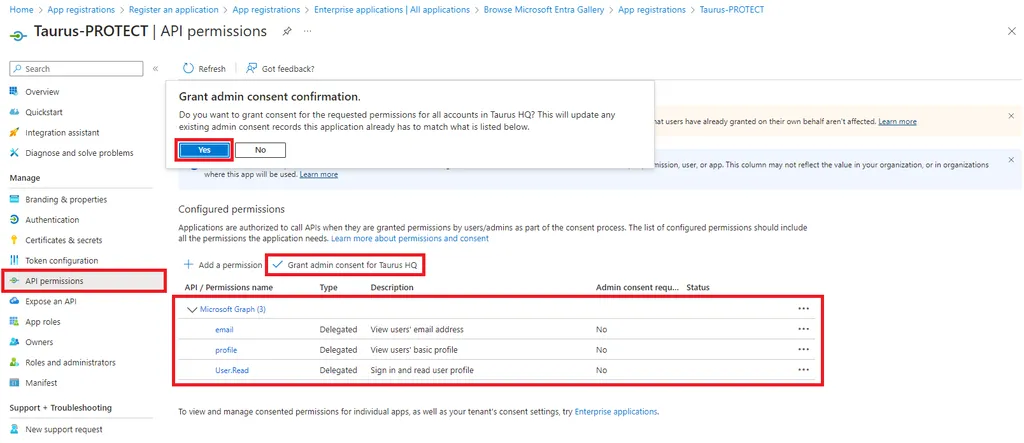
- Browse to Enterprise applications and select the application you just created. In the Manage > Properties tab make sure:
- Enabled for users to sign-in? is set to Yes.
- (Optional) Upload a logo for the application.
- Assignment required? is set to Yes.
- Visible to users? is set to No.
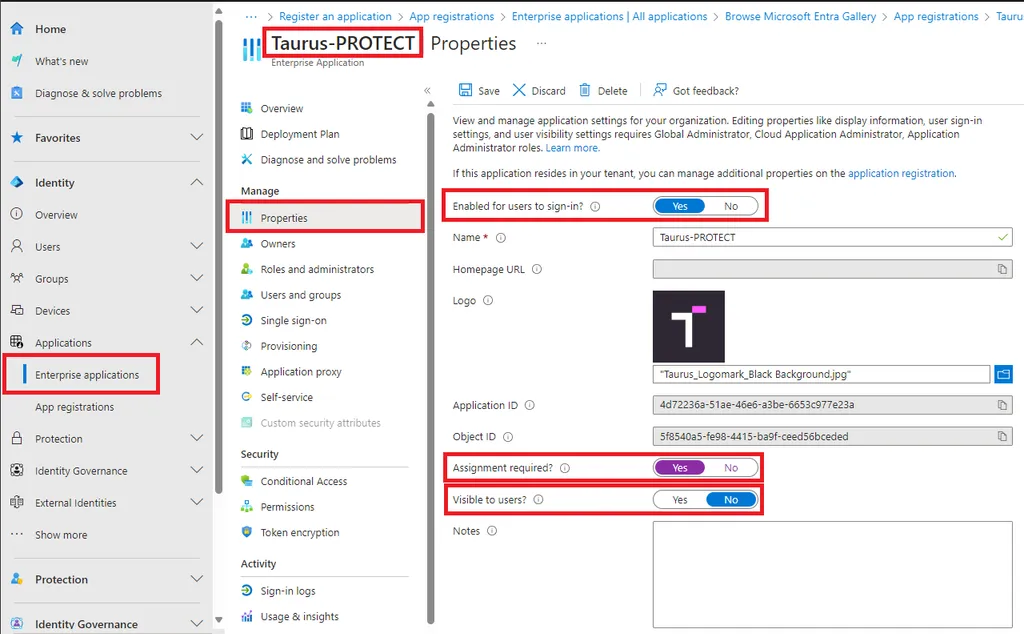
- Browse to Manage > Users and groups and assign the relevant users/groups to the application. If you want to setup group mapping, take note of the Azure groups names and IDs.
Azure AD - SAML
Prerequisites
To get started, you need:
- A Microsoft Entra subscription.
- To enable SSO in Taurus-PROTECT configuration (tg-validatord and tg-protect-gui).
Configure Microsoft Entra SSO
Follow these steps to enable Microsoft Entra SSO.
- Sign in to the Microsoft Entra admin center as at least a Cloud Application Administrator.
- Browse to Identity > Applications > Enterprise applications > New application.
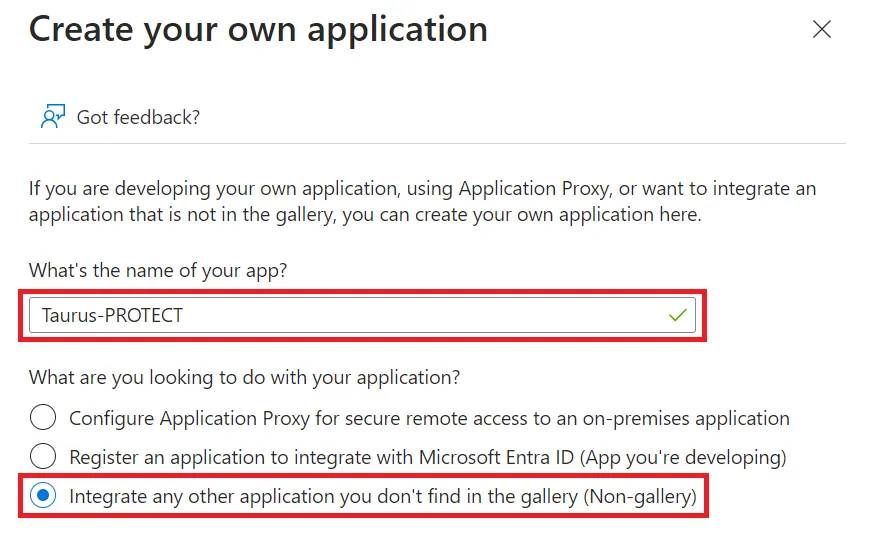
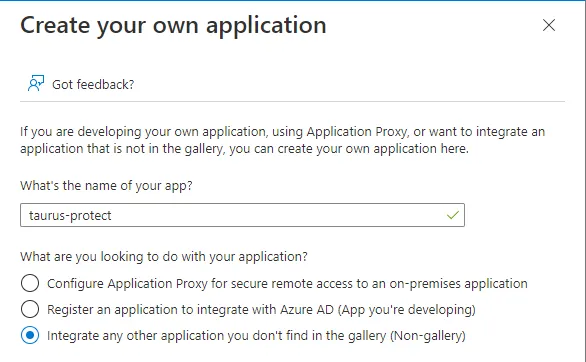
- Select Create your own application.
- Input the application name (e.g. Taurus-PROTECT) and select Integrate any other application you don’t find in the gallery (Non-gallery).
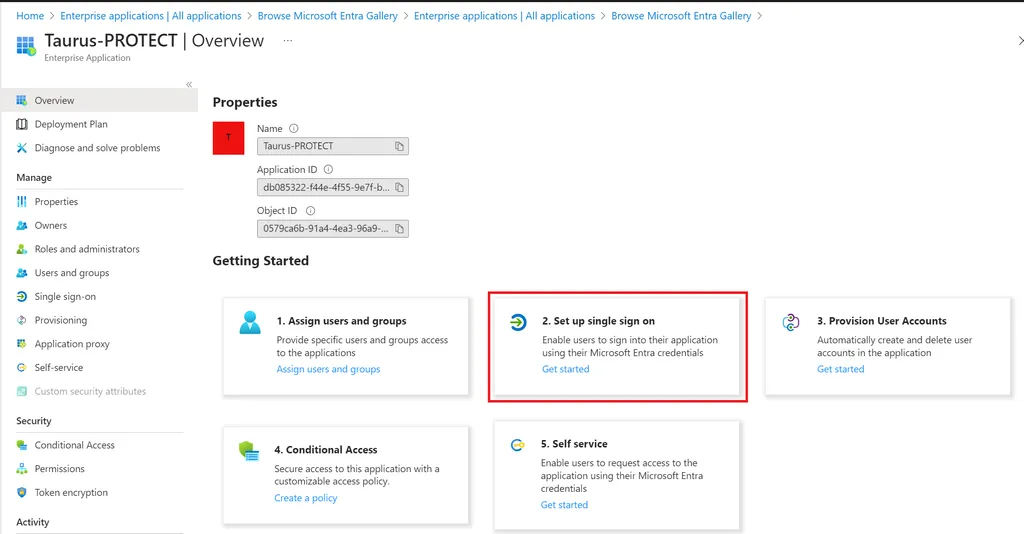
- On the application Overview page that opens, select 2. Set up single sign on.
- Select SAML as your single sign-on method.
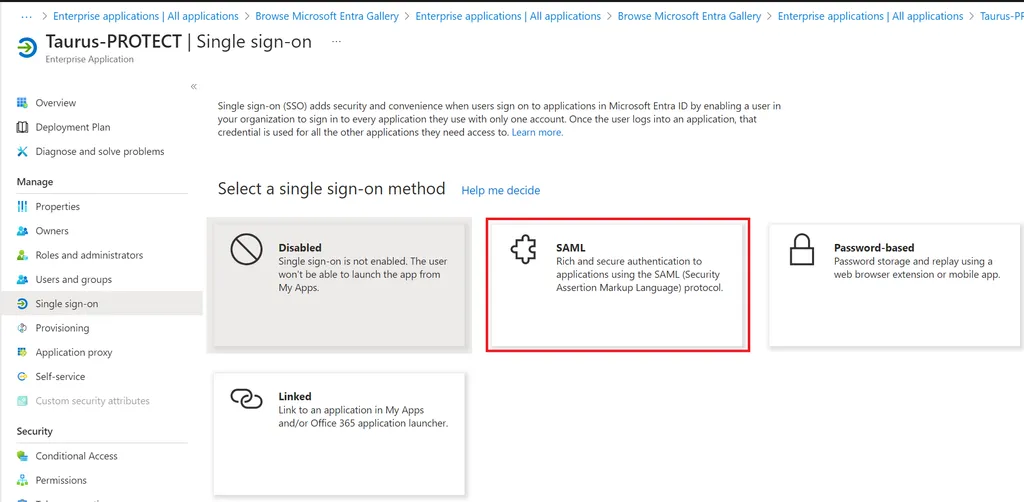
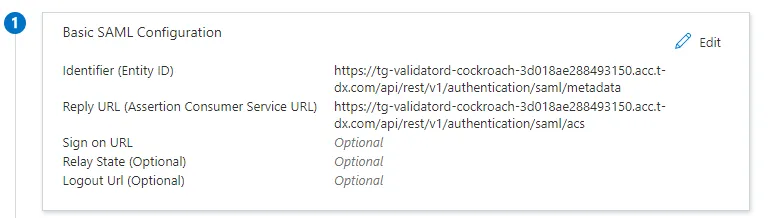
- Select the pencil icon to edit the Basic SAML Configuration.
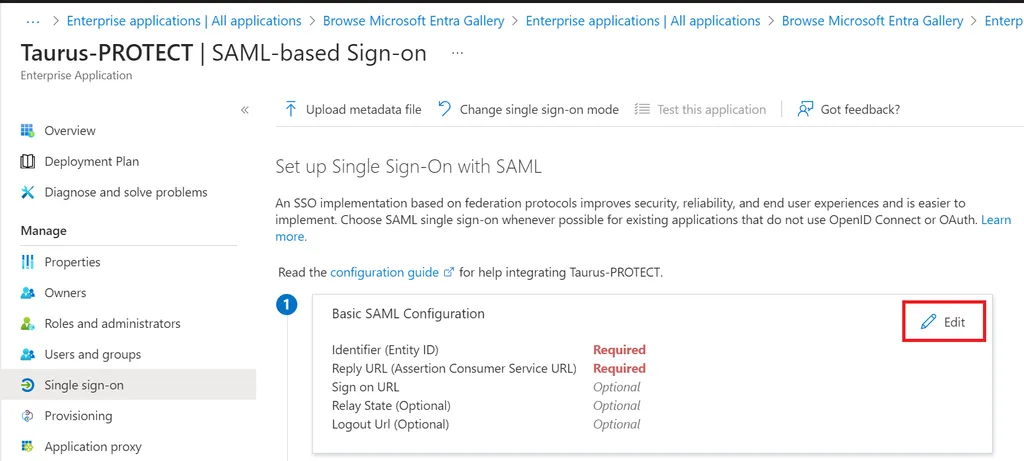
- Enter the following values:
- In the Identifier (Entity ID) text box, type a URL using the following pattern:
https://<Taurus-PROTECT backend URL>/api/rest/v1/authentication/saml/metadata. - In the Reply URL (Assertion Consumer Service URL) text box, type a URL using the following pattern:
https://<Taurus-PROTECT backend URL>/api/rest/v1/authentication/saml/acs. - Sign on URL text box: leave blank.
- Relay State (Optional) text box: leave blank.
- Logout Url (Optional) text box: leave blank.
- In the Identifier (Entity ID) text box, type a URL using the following pattern:
- Select Save and the cross button to exit Basic SAML Configuration.
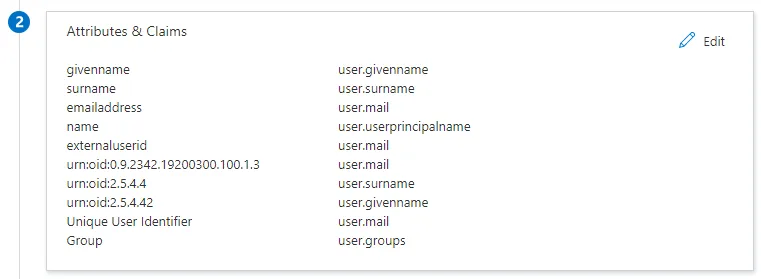
- Your Taurus-PROTECT application expects the SAML assertions in a specific format, which requires you to add custom attribute mappings to your SAML token attributes configuration. Select the pencil icon to edit the Attributes & Claims.
- Select Add new claim and add:
- Name: externaluserid
- Namespace: https://
<your company>/claims, e.g. https://taurushq.com/claims - Source: Attribute
- Source attribute: user.mail
- Select Add a group claim and add (optional, only if you want to map Azure groups to Taurus-PROTECT groups/roles):
- Which groups: Groups assigned to the application
- Source attribute: Group ID
- Select Add new claim and add:
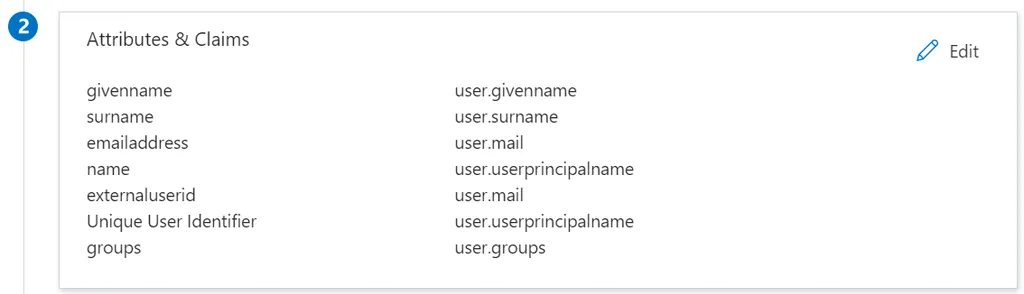
- In the SAML Signing Certificates section, click Download to download the Federation Metadata XML from the given options.
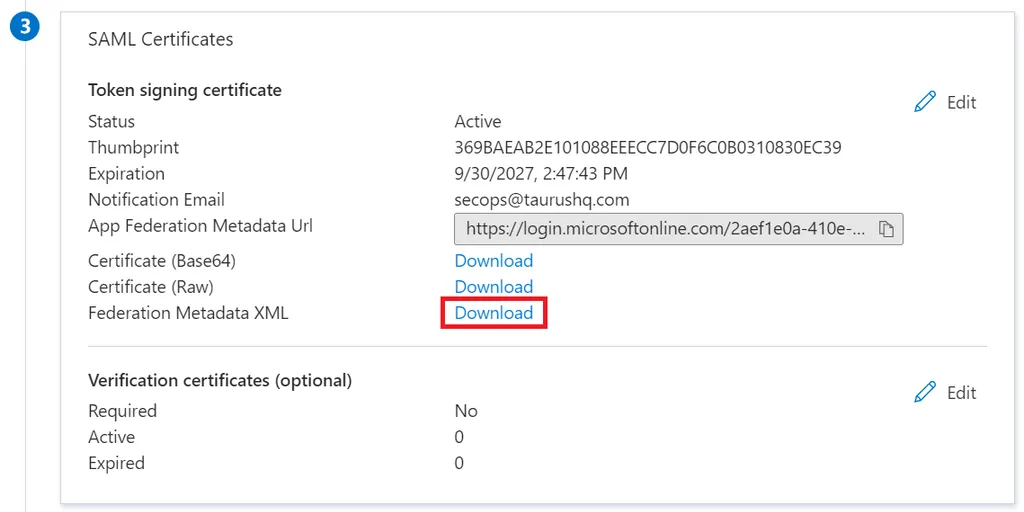
- Browse to Manage > Properties and make sure.
- Enabled for users to sign-in? is set to Yes.
- (Optional) Upload a logo for the application.
- Assignment required? is set to Yes.
- Visible to users? is set to No.
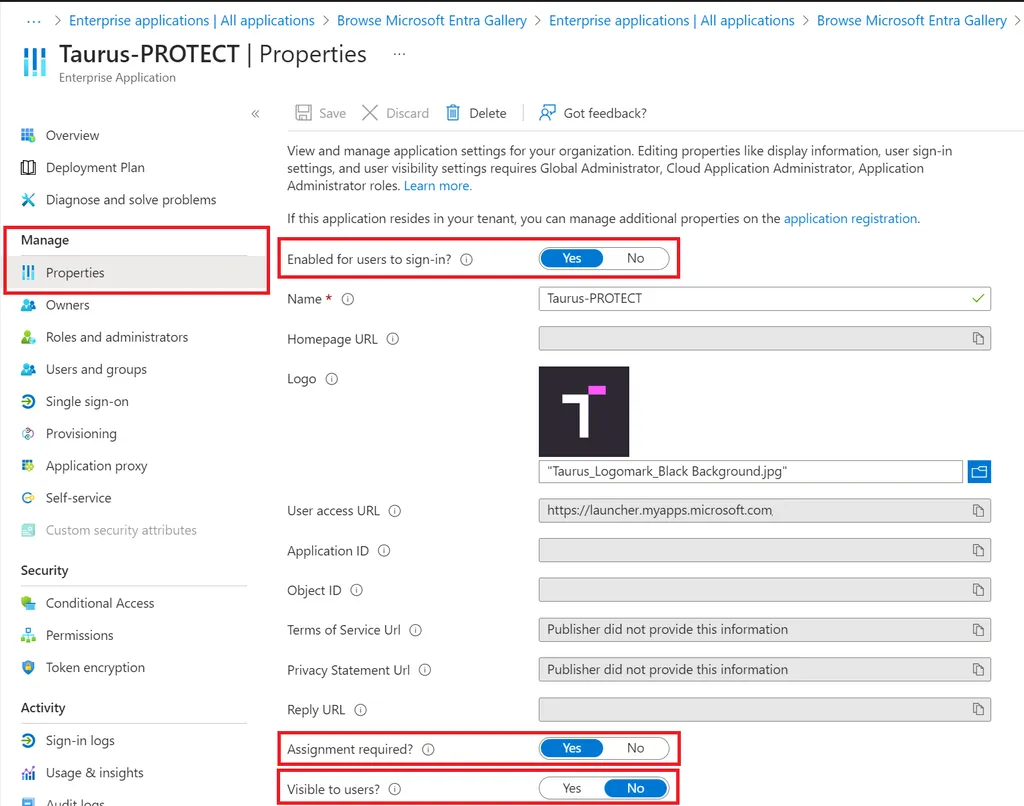
- Browse to Manage > Users and groups and assign the relevant users/groups to the application. If you want to setup group mapping, take note of the Azure groups names and IDs.
Azure users
In Azure AD, the following fields are used by Taurus-PROTECT and are mandatory:
- First name
- Last name
Define and create Azure groups
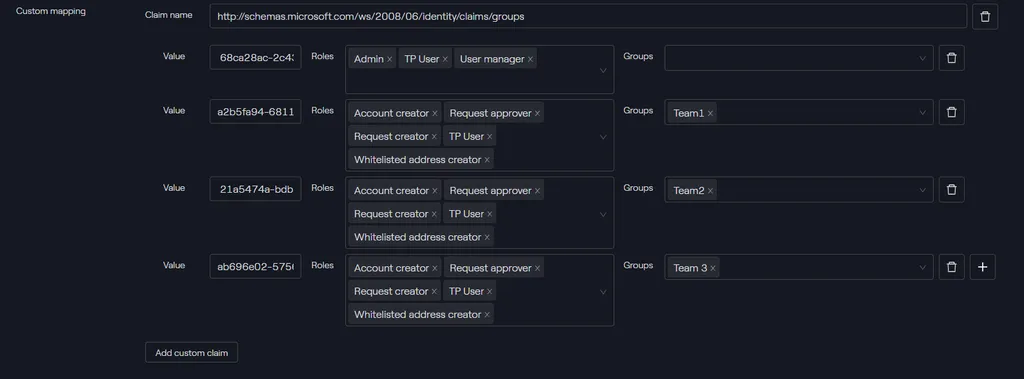
The user’s roles and assignments to groups in Taurus-PROTECT are assigned depending of which Azure groups the user belong to. An Azure group is mapped to a Taurus-PROTECT group containing a set of roles or directly to a set of roles.
Example of mappings:
- Azure group
taurus-protect-uat-operations→ Taurus-PROTECT group Operations.- With the Operations group including roles:
tpuser,requestcreator,requestapprover,accountcreator,whitelistedaddresscreator
- With the Operations group including roles:
- Azure group
taurus-protect-admins→ Taurus-PROTECT rolestpuser,admin,usermanager.
Superadministrators
Because of the sensitive nature of the Superadmins roles, such users cannot be automatically provisioned and assigned the superadmin role. Superadmins need to be created during the environments setup, and they will be able to login with SSO.
To handle the Admins and Operators, the following groups (Group type = Security) are created in Azure AD (How to manage groups - Microsoft Entra):
- taurus-protect-admins (Object Id:
68ca28ac-2c43-4182-a5f8-216cb47219af) - taurus-protect-operators-team1 (Object Id:
21a5474a-bdb5-45d4-a753-6db5d66d9d9e) - taurus-protect-operators-team2 (Object Id:
a2b5fa94-6811-4c4e-911f-eef47c36092b) - taurus-protect-operators-team3 (Object Id:
ab696e02-5756-4fa1-b1e8-57f9c98b7d2f)

Create Azure Application
Create your own Azure Enterprise application (Quickstart: Add an enterprise application - Microsoft Entra ID).
Set up single sign on
Basic SAML Configuration:
Download the Federation METADATA XML:
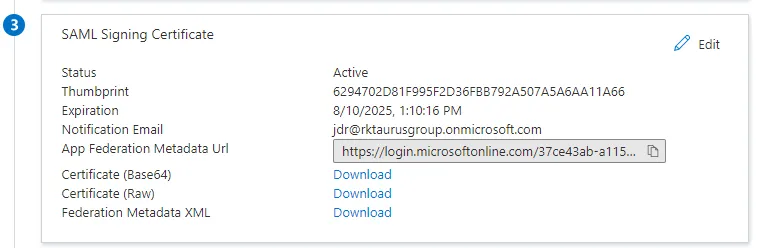
The file taurus-protect.xml contains the Federation Metadata XML.
Configure SSO in Taurus-PROTECT
see SP configuration - SAML for more info.
Login with an Admin and create an SSO configuration:
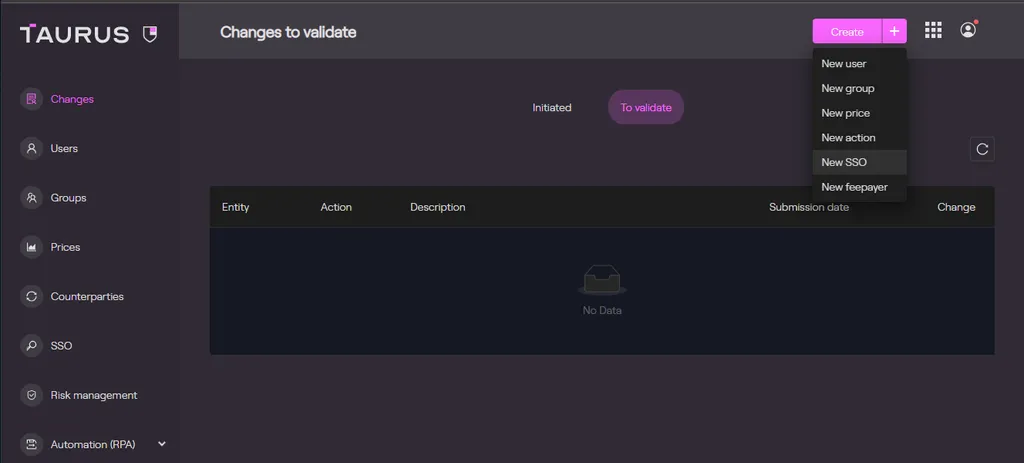
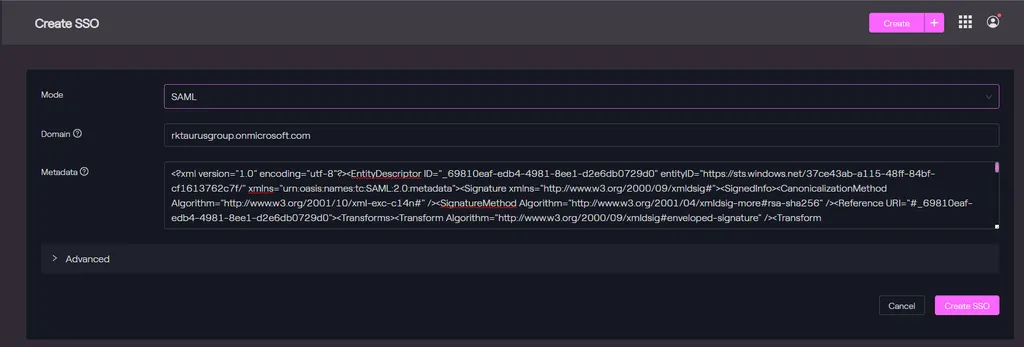
Configure the SAML Mode:
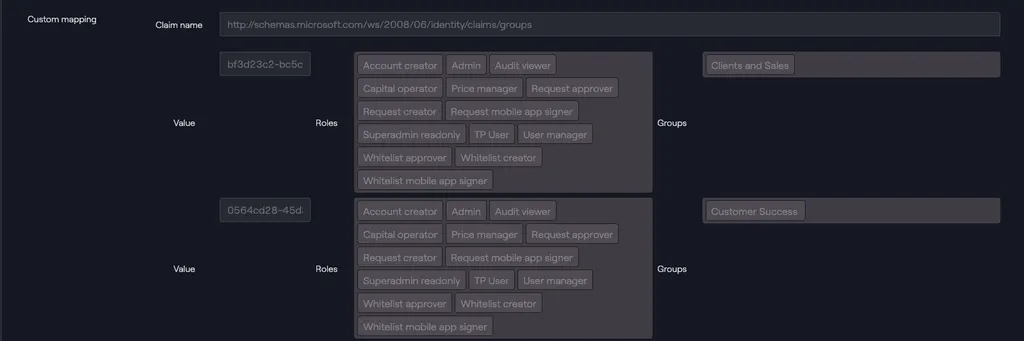
In the Advanced tab, configure a custom mapping, i.e. Add custom Claims:
The Group Object Id must be used, and not the group names. When using group membership for in-application authorization, it’s preferable to use the group ObjectID attribute, it is immutable and unique in Azure AD.
SP Configuration - Taurus-PROTECT
Configuration - SSO
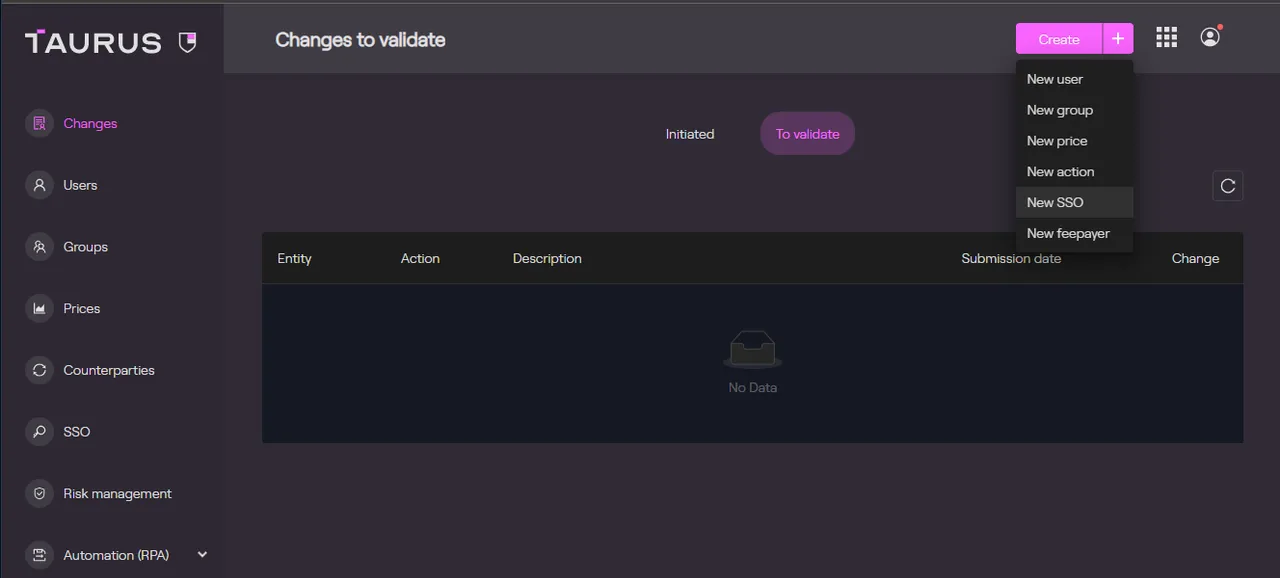
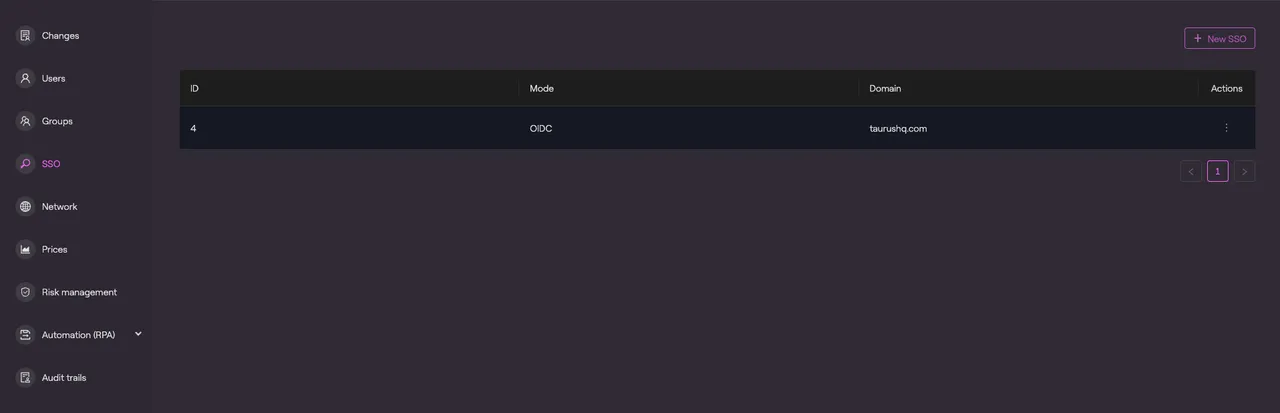
A new SSO configuration can be created by an Admin via the Create menu or directly from the SSO tab.
SAML - General
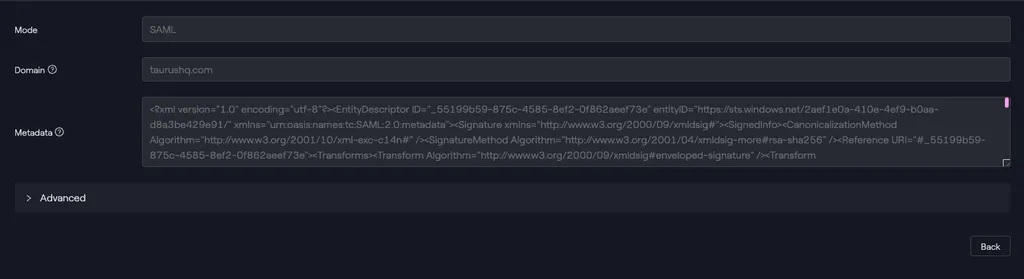
Example - SAML <taurushq.com> domain
SAML - Advanced
Custom mapping
OIDC - General
OIDC - OpenID configuration
Automatic (recommended):
Manual:
OIDC - Advanced
Custom mapping
SCIM Configuration
The SCIM is a specification to standardise user management between applications. The goal is that each application/service provider (such as Taurus-PROTECT) provide similar endpoints, that expect the same type of inputs and return the same type of responses. This enable a client to build the same requests to create/update/delete a user in different services.
To ensure consistency of entities between services, SCIM providers need to follow or define schema. For example, the User entity is following the urn:ietf:params:scim:schemas:core:2.0:User schema.
Tenant configuration
scim_bypass_admin_approval
- true: User/Group changes made on the SCIM endpoints will directly be applied without any Admin approval.
- false: User/Group changes made on the SCIM endpoints will generate an admin change that will have to be approved by an Admin.
virtual_roles
- A virtual role is a role regrouping multiple roles like:_ user_creator,tpuser,requestercreator,accountcreator_. When assigning this virtual role to a user through SCIM or an admin change, it will assign the different roles from the virtual role to the user.
Example:
scim_enforce_virtual_mode
- true: Groups and roles changes can only be made via the SCIM endpoint with virtual groups.
- false: Groups and roles changes can be made by Admins as well as the SCIM endpoint with virtual groups.
Authentication - Authorisation
The SCIM endpoints require the scim role from Taurus-PROTECT.
Generate an API token
To get a long-lived JWT for calls on the SCIM endpoints. An API key can be generated using the Taurus-PROTECT API. This endpoint needs to be called with the technical user (tgvalidatord role).
POST /api/rest/v1/steward/tenants/{tenantId}/apikeys
Example of request body:
expiration: Expiration date of the JWT.
roles: Roles of the API Key.
SCIM Endpoints - Generic
GET /api/rest/v1/scim/v2/ServiceProviderConfig
This endpoint is used to expose to the client what options of the SCIM specification Taurus-PROTECT provides. This is where we’ll inform whether we support a changePassword request, patch or bulk operations through our SCIM endpoints.
Example of ServiceProviderConfig response:
SCIM Endpoints - Users
The User entity will use the urn:ietf:params:scim:schemas:core:2.0:User schema. This schema only requires three attributes:
- id: Service provider (Taurus-PROTECT) defined identifier - Validatord.
- externalId: Client defined identifier.
- meta: Read-only metadata maintained by the service provider (Taurus-PROTECT). Optional custom attributes can be added to it.
In the following endpoints, the {id} represent a Taurus-PROTECT backend user ID.
- GET /api/rest/v1/scim/v2/Users/{id}
Get a User.
RFC 7644: System for Cross-domain Identity Management: Protocol
Example of call:
Example of response:
- GET /api/rest/v1/scim/v2/Users
Get Users.
Query parameters:
- filter: See explication below
- startIndex: Pagination - Starts from 1 (default: 1)
- count: Pagination - Limit per page (default: 100, max: 10’000)
Filter: Query users if they start with/equal/ends with a special value for the following columns : firstName, lastName, externalUserId, email
Examples of filter value we support:
Example of a call:
Example of response:
- PATCH /api/rest/v1/scim/v2/Users/{id}
Update a User.
RFC 7644: System for Cross-domain Identity Management: Protocol
Request body:
- op: add, remove or replace
- path: user field
- value: value to set
Example of a call:
- POST /api/rest/v1/scim/v2/Users
Create a User.
Example of request body:
If the request return an error about user already existing, it must return an error code 409 (conflict).
Example of call in validatord:
- DELETE /api/rest/v1/scim/v2/Users/{id}
Delete a User.
warning It can be noted that when re-creating a user with the same info after it has been deleted, this user won’t have the same ID as it had before deletion.
Example of call:
SCIM Endpoints - Groups
The Group entity uses the urn:ietf:params:scim:schemas:core:2.0:Group schema.
- id: Service provider (Taurus-PROTECT) defined identifier - Validatord.
- displayName: The name of the User, suitable for display to end-users.
- members: List of Users with id and display fields for each User.
- meta: Read-only metadata maintained by the service provider (Taurus-PROTECT). Optional custom attributes can be added to it.
In the following endpoints, the {id} represents our backend user ids
- GET /api/rest/v1/scim/v2/Groups/{id}
Get a Group.
RFC 7643: System for Cross-domain Identity Management: Core Schema
Example of call:
Example of response:
- GET /api/rest/v1/scim/v2/Groups
Get Groups.
RFC 7644: System for Cross-domain Identity Management: Protocol
Query parameters:
- filter: See explication below
- startIndex: Pagination - Starts from 1 (default: 1)
- count: Pagination - Limit per page (default: 100, max: 10’000)
Filter: Query users if they start with/equal/ends with a special value for the displayName column.
Examples of filter value we support:
Example of a call:
Example of response:
- POST /api/rest/v1/scim/v2/Groups/{id}
Create a Group.
Example of call:
Example of a request body:
If the request return an error about user already existing, it must return an error code 409 (conflict).
- DELETE /api/rest/v1/scim/v2/Groups/{id}
It can be noted that when re-creating a group with the same info after it has been deleted, this group won’t have the same ID as it had before deletion.
Example of call: